

Creating Different Tickets from Trending and Overdue Numbers
LottoBase Team 31 August 2026 4 min read
Under each of your selected numbers on the Numbers tab you may see a small icon: a green arrow, a red arrow, or a blue clock. Each is a compact summary of what that ball has done across past draws. This post covers what the three icons describe, how to sort the Number Picker’s grid by them, and how to turn the results into two or three separate tickets you can follow side by side.
What the three icons describe
Picture a bag holding 59 numbered balls. You shake out six, write them down, put all six back and repeat. Do that a hundred times and 600 balls have come out of the bag, so if the numbers had shared themselves out perfectly evenly each one would have appeared about ten times.
They never do share out evenly. In any real run, some numbers land fifteen or sixteen times and others four or five, purely because that is how a shuffled bag behaves. The icons read that unevenness:
- Trending Up (green arrow) — a recent strong performer. This ball has been coming up frequently, especially across the most recent draws.
- Trending Down (red arrow) — a recent poor performer. It has been coming up infrequently over the period you are looking at.
- Overdue (blue clock) — a ball that had been appearing at a steady rate and has since gone quiet, with more draws having passed since its last appearance than its own usual gap between appearances.
All three are statements about draws that have already happened. Every ball has exactly the same chance of coming out of the machine next time, whichever icon it happens to carry. What the icons give you is a reason to choose — a deliberate shape to a line, instead of tapping Random Pick until something feels right.
Sorting the grid by Trending
Tap any of your selected numbers on the Numbers tab to open the Number Picker. It opens in the Essentials view, showing your Favourites above the number grid. Switch to the Insights tab, then set a period with the Insights Period Selector — 3M, 12M or All Draws.
In the Insights view every ball in the grid carries its icons and its occurrence count, and the grid itself can be sorted by Trending, Occurrence, Numerical or Favourites. Sort by Trending and the recent strong performers gather at one end, the recent weak ones at the other. Tap a ball and you get its own figures: “Last seen N draws ago”, “Appeared in N% of draws”, and the Ball Frequency Pattern — a visual of when it has come up over the period, gaps and clumps included. Confirm Selection applies it to your selected numbers.
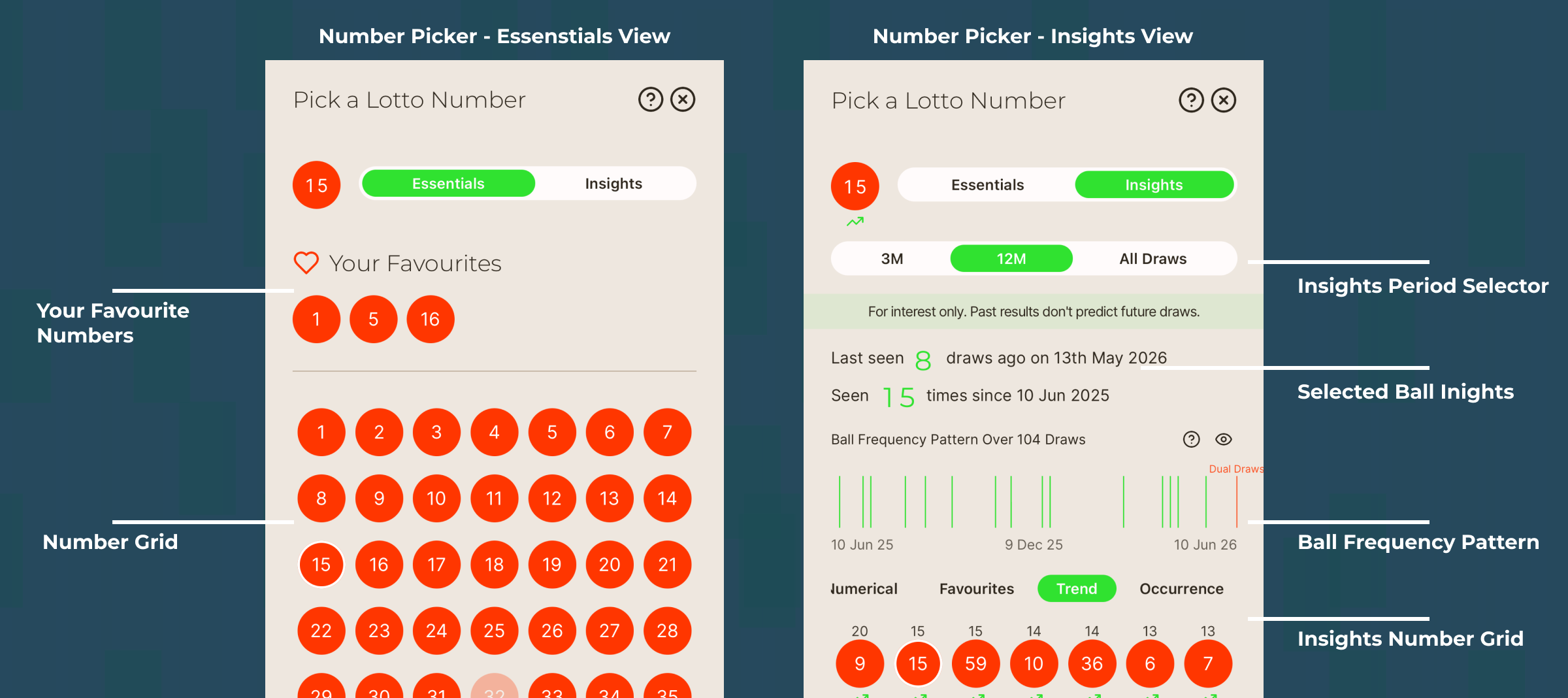
Tap a number to open the Number Picker — Essentials for your Favourites, Insights for that ball’s history.
A short period and a long one will not agree, and that is normal rather than a problem. Three months covers only a few dozen draws, so a couple of extra appearances is enough to push a ball up the Trending sort; over All Draws it takes far more. Neither reading is the correct one. Pick the period you actually want to look at and stay on it while you build a line, or you will be answering two different questions at once.
Building tickets that differ
Build the first line one number at a time: tap a position, sort by Trending, choose a green-arrow ball, Confirm Selection, and repeat. If you only want to set some of the positions by hand, long-press each finished number back on the Numbers tab to lock it, then tap Random Pick to fill the rest without disturbing your choices.
When the line looks right, tap Add to Ticket. If you already have untracked tickets for that game, a panel offers them alongside Create New Ticket — choose Create New Ticket, since the point here is to keep the selections apart.

Add to Ticket saves your selected numbers to an existing untracked ticket or a brand-new one.
Now do it again for the blue clocks, and again for the red arrows if you want a third. Each goes to its own new ticket. On the Edit Ticket screen the ticket name is editable, so you can call them something you will still recognise in three months.
From draft to tracked
A newly created ticket defaults to Not Tracking, which is the draft stage — the three dots next to a line let you edit its numbers or delete it. Use those numbers to fill in a play slip at a retailer, or type them into the online play slip at national-lottery.co.uk; tickets cannot be bought through LottoBase. Once you have bought them, open each ticket’s Edit button and tap Track this Ticket. From then on the app checks the numbers against every draw the ticket is eligible for, records wins, counts the draws left and watches the expiry date, and the lines are fixed.
Over the following months each ticket’s wins appear on its card and under Winning Lines on the Edit Ticket screen — mostly lower-tier matches, if anything. One ticket will be ahead of another at any given moment, and that gap is the same ordinary unevenness that produced the icons in the first place. What you are left with is a tidier way to play: two or three lines chosen for a stated reason, all of them tracked, none forgotten. Which set would you rather play?
The lottery is a game of chance, so it is worth settling what you are comfortable spending before you start building tickets rather than after.